
Votre panier est vide
A pocket Bluetooth remote for cameras, action cameras, your phone and your computer.
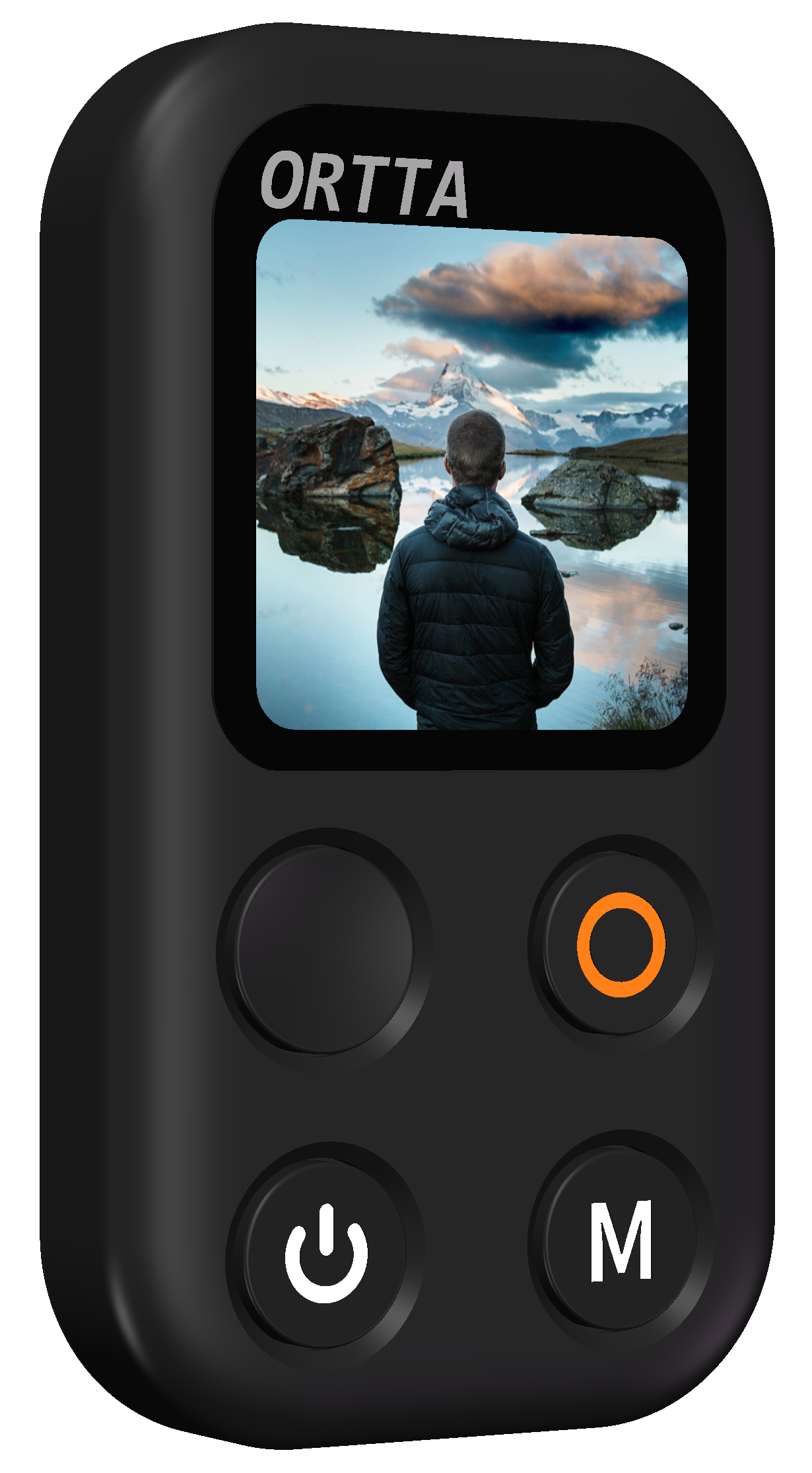
Thank you for purchasing the ORTTA Jupiter, a small Bluetooth remote with a color screen. Jupiter fires your camera, starts and stops video, and shows the camera's status on its screen. It works with mirrorless and DSLR cameras with Bluetooth remote support, with action cameras, and with your phone's camera through the Ortta Camera app. With an Io, Io Pro, Pluto 2 or Pluto 2 Pro it can trigger almost any other camera too. It can also act as a Bluetooth keyboard and media remote for a phone or a computer.
Jupiter has three buttons for shooting — Shutter, Video and Setting — plus a Power button. There is nothing to configure before you shoot: pair your camera once and Jupiter reconnects to it by itself.
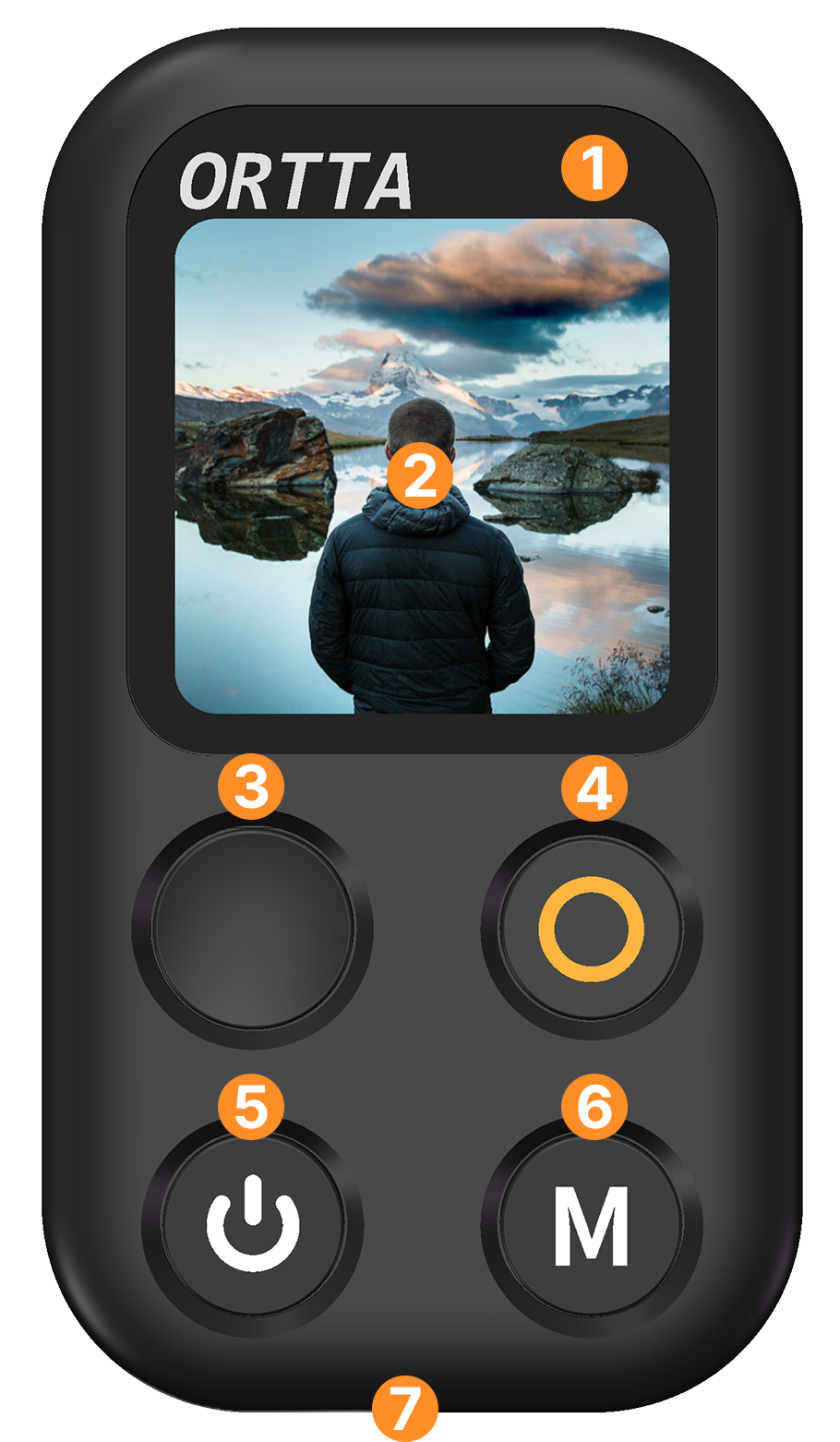
| Button | Click | Long press |
|---|---|---|
| Power | Turn the screen on / off | Power off |
| Shutter | Take a photo (or cancel a running self-timer) | Start a 10-second self-timer |
| Video | Start / stop recording | Start / stop live view (phone camera, and supported Ortta devices) |
| Setting | Open Settings | Scan for cameras and devices to connect |
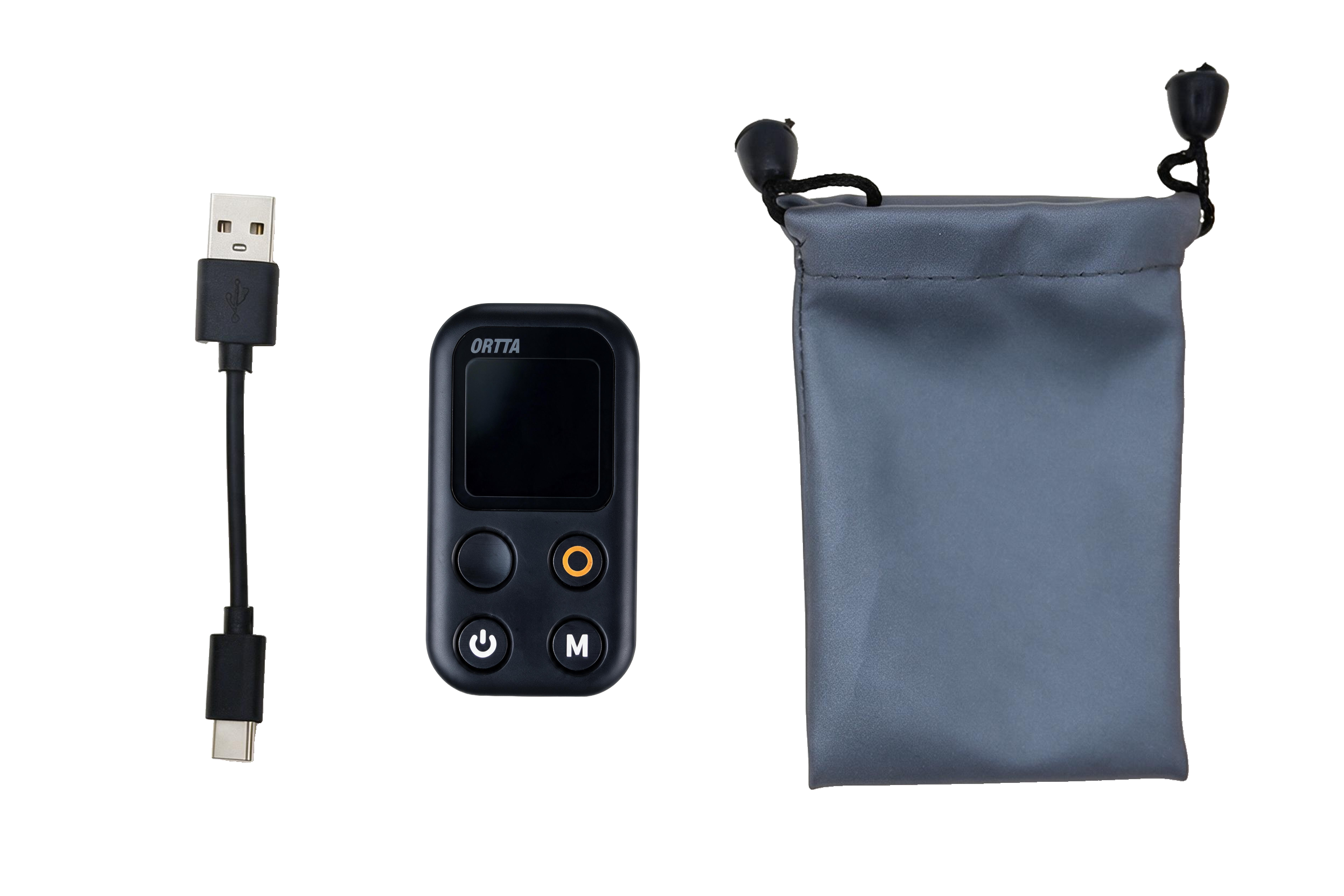
Connect Jupiter to a USB power source with the supplied cable. The orange LED lights while charging and turns off when the battery is full. A full charge takes about 1 hour.
The screen turns off by itself, and Jupiter powers off by itself, after the times set in Display settings.
Jupiter has three LEDs, the same as Pluto 2:
| LED | Colour | Meaning |
|---|---|---|
| 1 | Green | Lights when Jupiter fires the camera |
| 2 | White | Lights while Jupiter is on |
| 3 | Orange | Lights while charging, off when fully charged |
The brightness of the green and white LEDs can be changed in Display settings.
After start-up Jupiter shows the home screen.
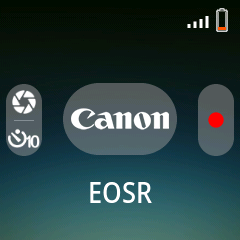
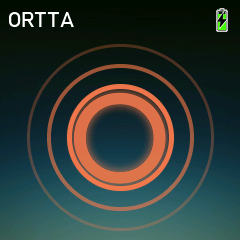
Status bar (top)
| Position | Shows |
|---|---|
| Left | The ORTTA logo |
| Right | Battery of the connected camera, card usage, number of connected devices, signal strength (RSSI) and Jupiter's own battery |
Centre
Button guide (bottom)
Small capsules at the bottom of the screen remind you what the Shutter, Video and Setting buttons do for the connected device. Turn them off with Settings › System › Guide.
| Your gear | Connection |
|---|---|
| Canon / Sony / Nikon / Fujifilm / Panasonic with Bluetooth remote | Direct Bluetooth |
| GoPro / Insta360 / DJI Osmo Action | Direct Bluetooth |
| Camera without Bluetooth remote support | Via an Io, Io Pro, Pluto 2 or Pluto 2 Pro (see 3.4) |
| Your phone's camera | Ortta Camera app |
| Phone or computer (keyboard / media remote) | Bluetooth keyboard mode |
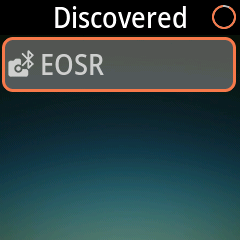
Brand notes:
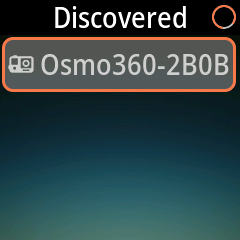
If you see Pairing Failed, bring the camera closer, make sure it is still in pairing mode, and try again. Already Paired means this device is already in your list, and Max 10 Paired means you must remove one first.
Jupiter can hold up to 10 paired devices, 6 of them enabled at once. To manage a device, open Settings › Devices › Devices, select it and choose Enable, Disable, Set Master or Remove. The first device you pair becomes the master.
While no phone is connected, Jupiter keeps scanning for your paired devices and connects by itself when they appear. If a camera has gone to sleep, just press Shutter or Video: Jupiter wakes the camera, reconnects, and then carries out the press. You can also long-press Setting to scan again at any time.
GoPro and Insta360 cameras disconnect when they sleep, so Jupiter shows them as searching until they wake. A DJI Osmo stays connected while it sleeps.
Canon, Sony, Nikon, Fujifilm and Panasonic.
| Button | Click | Long press |
|---|---|---|
| Shutter | Take a photo | 10-second self-timer |
| Video | Start / stop recording | — |
| Setting | Settings | Scan |
The screen shows the camera's brand and name, with the focus and capture indicators while the camera focuses and shoots.
Self-timer. Hold Shutter to start a 10-second countdown; the green LED flashes as it counts down and the camera fires at the end. Click Shutter while it counts down to cancel it.
GoPro, Insta360 and DJI Osmo Action. The screen shows the camera's battery, card space, signal strength, current mode or preset, and whether it is asleep.
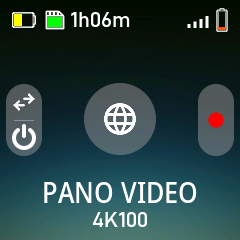
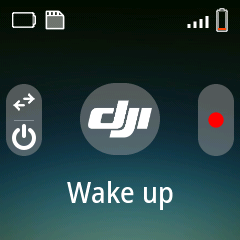
| Button | Click | Long press |
|---|---|---|
| Shutter | Switch mode (or wake the camera when it is asleep) | Sleep; wake when asleep |
| Video | Start / stop recording | — |
| Setting | Settings | Scan |
With the Ortta Camera app connected, Jupiter controls your phone's camera. The screen shows which camera is in use (for example Front | Wide) and a timer while recording.
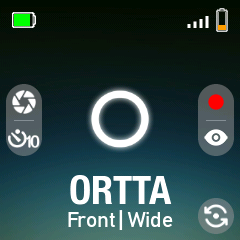
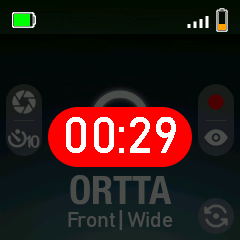
Note: pair Jupiter inside the Ortta Camera app, as described below. Do not pair it in your phone's system Bluetooth settings: the pairing will be rejected.
Install the Ortta Camera app and turn on Jupiter.
Open the app on your phone.
Open the Device page, either way:
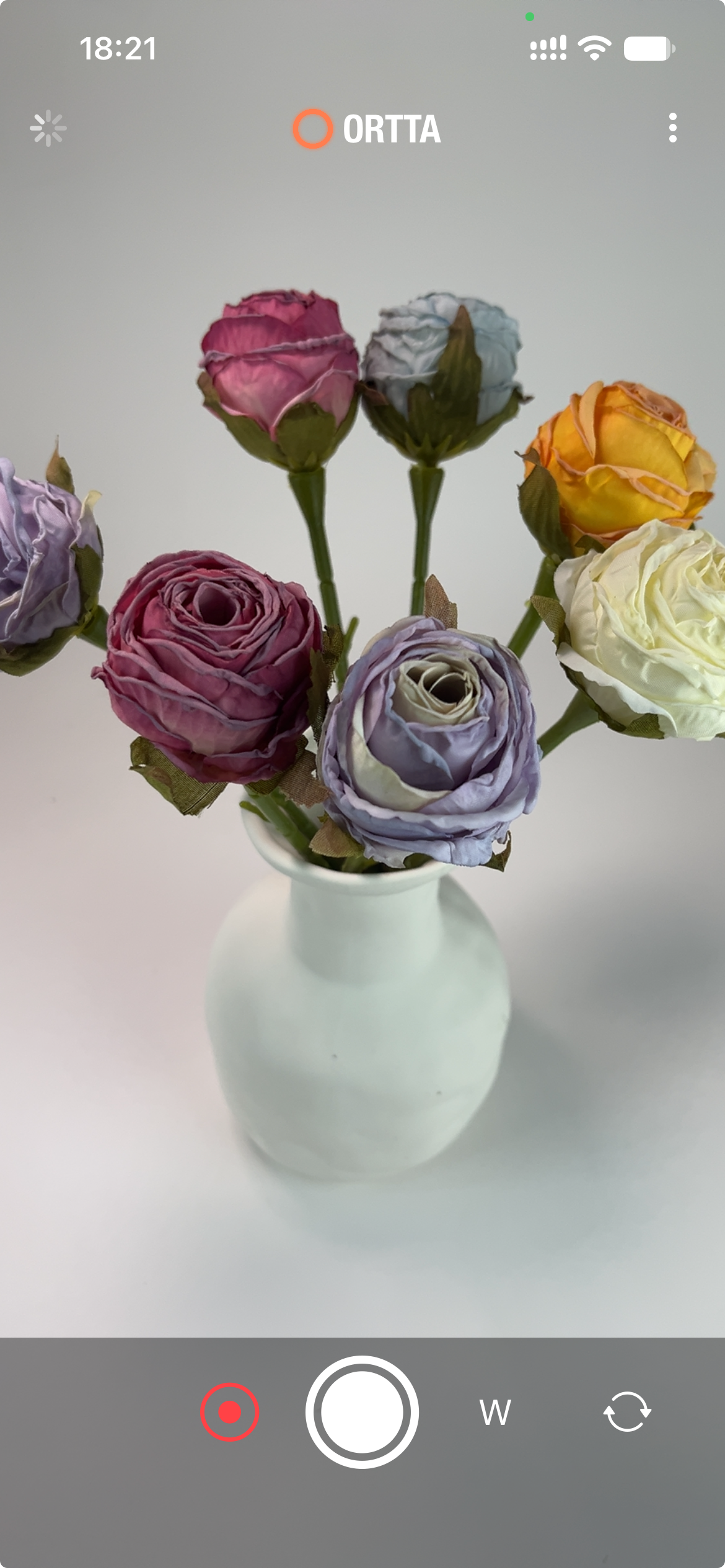
The app starts scanning automatically. Jupiter appears under Discovered devices.
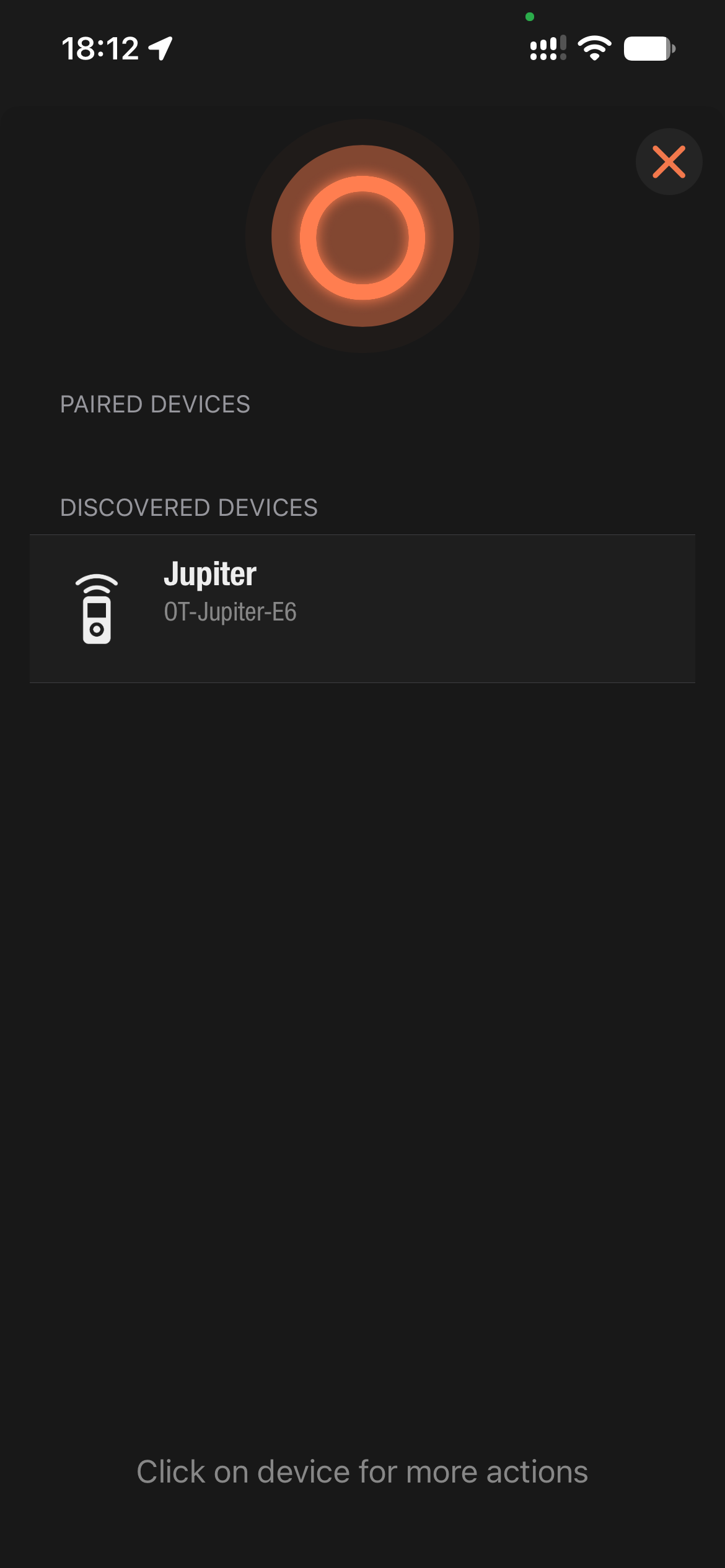
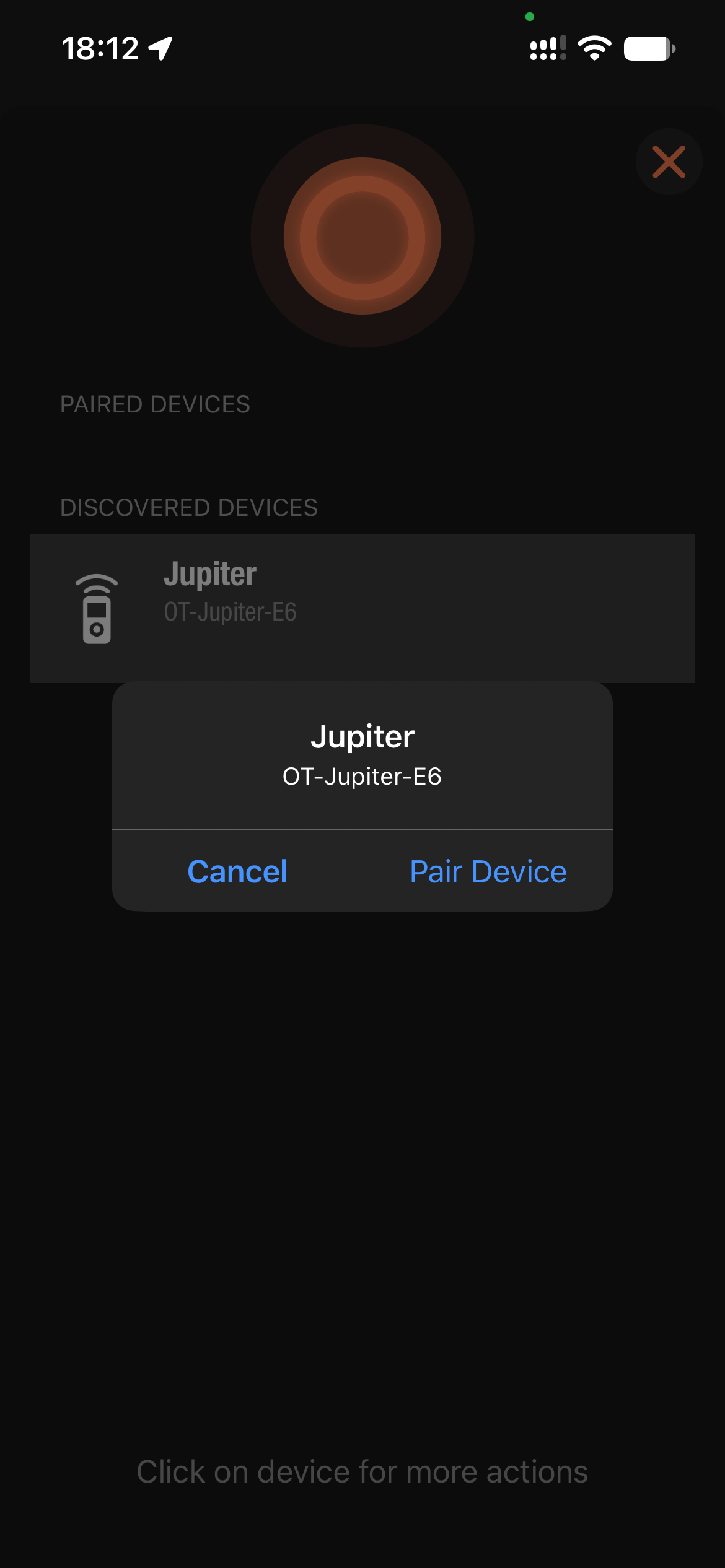
Tap Jupiter. In the dialog, tap Pair Device.
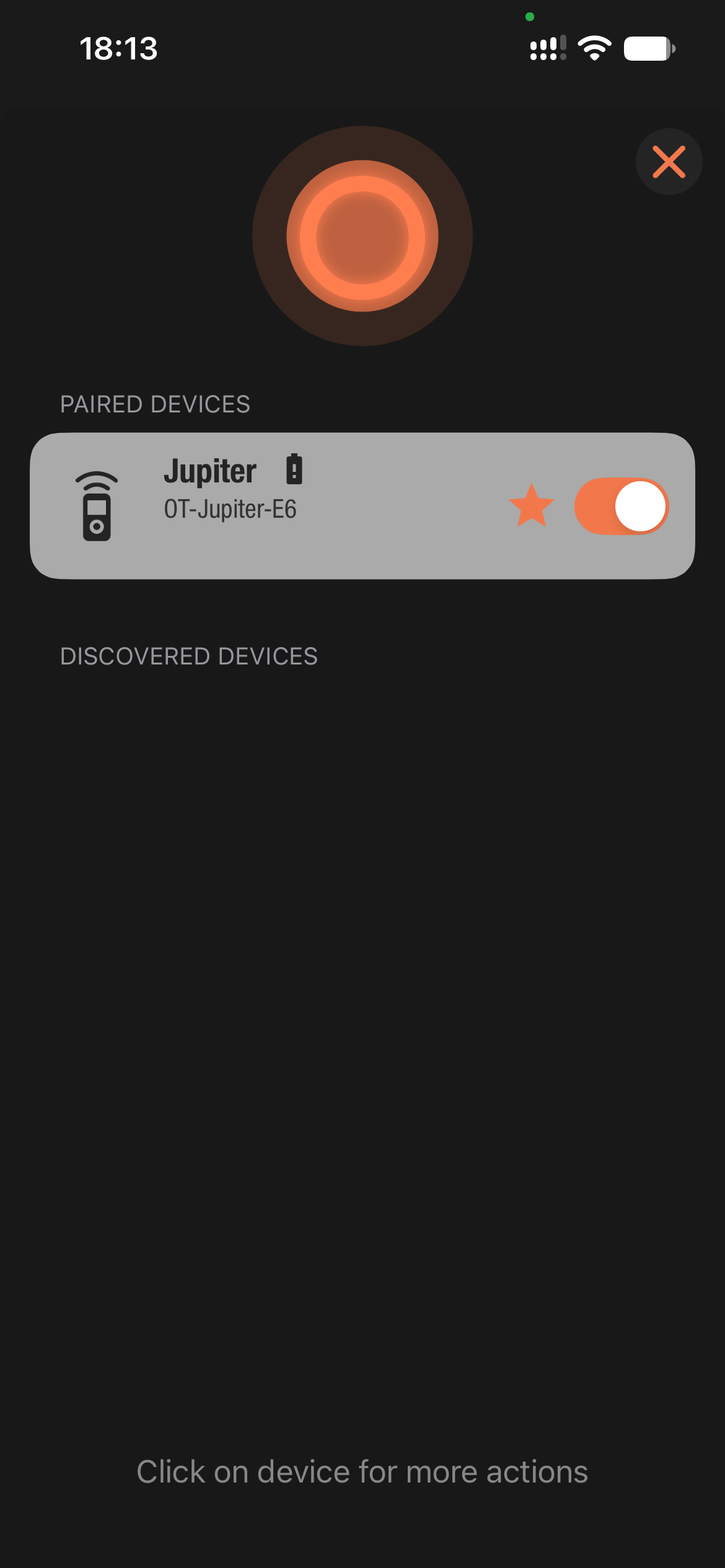
Jupiter now appears under Paired devices.
| Button | Click | Long press | Double-click |
|---|---|---|---|
| Shutter | Take a photo | 10-second self-timer | — |
| Video | Start / stop recording | Start / stop live view | — |
| Setting | Settings | Scan | Switch lens |
Live view shows the phone's camera image on Jupiter's screen, and each photo you take appears briefly as a preview. See Live view and photo preview.
Jupiter can also control the other Ortta devices: Io, Io Pro, Pluto 2 and Pluto 2 Pro. These devices connect to the camera for you, so Jupiter can fire cameras that have no Bluetooth remote support. Jupiter sends the Shutter and Video presses to the Ortta device, and the device operates the camera.
| Device | What Jupiter shows |
|---|---|
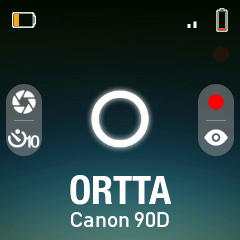
| Io, Pluto 2 | The ORTTA logo and the device name, plus the device's battery in the status bar |
| Io Pro, Pluto 2 Pro | The same, plus the focus and capture indicators, the name of the connected camera and the recording time |
| Button | Click | Long press |
|---|---|---|
| Shutter | Take a photo (or cancel a running self-timer) | 10-second self-timer |
| Video | Start / stop recording | Start / stop live view (Io Pro and Pluto 2 Pro only) |
| Setting | Settings | Scan |
To set up the camera itself (cable, BLE or USB connection), follow the manual of the Ortta device: Pluto 2 and Pluto 2 Pro or Io and Io Pro. Jupiter only sends the shutter and video commands. It cannot start a Pluto program (such as a timelapse). Use Jupiter Pro for that.
Pairing. Pair the Ortta device with Jupiter in the same way as a camera: turn the device on, open Settings › Devices › Add device on Jupiter, select the device and press Video. See Pairing a Bluetooth camera.
Sleeping devices. If the Ortta device has gone to sleep, press Shutter or Video. Jupiter reconnects and then carries out the press, as it does for a camera.
With an Io Pro or Pluto 2 Pro connected to a camera, Jupiter can also show the camera's live view and a preview of each photo. See Live view and photo preview.
When Jupiter is connected to the Ortta Camera app, or to an Io Pro or Pluto 2 Pro (with a camera connected to it), it can show the camera image on its screen:
Live view — the camera's live image. Hold Video to start it, and hold Video again to leave it. Shutter and Video keep working while live view is on. While recording, the timer appears over the image. Live view updates about 2 to 8 times per second.
Photo preview — after each photo, a thumbnail appears on the screen for a few seconds. During live view the preview pauses the live image and then returns to it. If the screen is off, a new preview turns it on. Pressing a button does not close the preview; it disappears by itself after the review time.
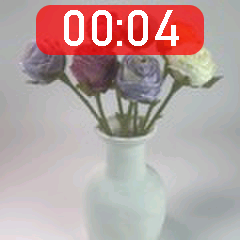
Other devices and cameras do not send images, so Jupiter shows no live view or preview for them.
Set how the images look in Review settings: turn the preview Download off to save battery, choose how long the preview stays (Off, 2, 4 or 8 seconds), and set the image Scale (Fit or Fill) and Quality for the preview and for live view.
Jupiter can act as a Bluetooth keyboard and media remote for a phone, tablet or computer. It works with any app that reacts to media keys or the keyboard.
Unlike the Ortta app, this is a normal Bluetooth pairing made in the system settings. It only works while HID Remote is on and Jupiter is on the Add device page.
Double-click Setting to switch between the three modes. The icon in the bottom-right corner of the screen reminds you of this. Jupiter remembers the last mode.
Camera — take photos with the phone's own camera app
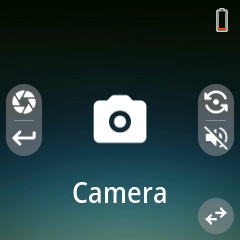
| Button | Click | Long press |
|---|---|---|
| Shutter | Volume up (fires most camera apps) | Enter |
| Video | Switch camera lens | Mute |
Music
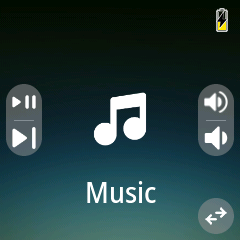
| Button | Click | Long press |
|---|---|---|
| Shutter | Play / pause | Next track |
| Video | Volume up | Volume down |
Slideshow
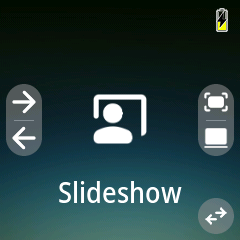
| Button | Click | Long press |
|---|---|---|
| Shutter | Next slide | Previous slide |
| Video | Full screen | Black screen |
When the Ortta Camera app is in the foreground on the same phone, Jupiter controls that app instead. When the app goes to the background, Jupiter switches back to the keyboard mode, so you can use the phone's system camera.
Click Setting to open Settings. Move with Shutter, select with Video, go back with Setting.
| Item | What it does |
|---|---|
| Devices | The paired devices. Select one to Enable, Disable, Set Master or Remove it. |
| Add device | Scan for a camera and pair it. See Pairing a Bluetooth camera. |
Controls the live view and photo preview that Jupiter receives from the Ortta Camera app, an Io Pro or a Pluto 2 Pro. See Live view and photo preview.
| Setting | Options | Default |
|---|---|---|
| Download | On, Off — receive a preview thumbnail of each new photo | On |
| Image review › Review time | Off, 2", 4", 8" — how long the preview stays on the screen | 2" |
| Image review › Scale | Fit, Fill | Fill |
| Image review › Quality | Max, High, Medium, Low | High |
| Preview › Scale | Fit, Fill — for live view | Fill |
| Preview › Quality | Max, High, Medium, Low — for live view | High |
These settings only matter while an Ortta Camera app, Io Pro or Pluto 2 Pro is connected. Quality Max gives the sharpest image but takes longer to send; lower quality is faster and uses less battery.
| Setting | Options | Default |
|---|---|---|
| Backlight | Screen brightness: Off, 1%, 5%, 10%, 20%, 30%, 40%, 50%, 60%, 70%, 80%, 90%, 100% | 50% |
| Led | Brightness of the LEDs. Same options as Backlight | 50% |
| DispOff | Time without button presses before the screen turns off: Stay on, 30", 1', 2', 5', 10', 20', 30', 60', 2h | 5' |
| PowerOff | Time without button presses before Jupiter powers off. Same options as DispOff | 30' |
| Dark Mode | Default, Dark, Light | Default |
Press any button to wake the screen.
| Setting | Options | What it does |
|---|---|---|
| HID Remote | On, Off | Lets Jupiter pair with a phone or computer as a Bluetooth keyboard. See Phone and Computer Remote. |
| Guide | On, Off | Shows the button guide at the bottom of the home screen. |
| Language | English, 简体中文 | |
| Sound | On, Off | Turns the buzzer on or off. |
The Misc group contains:
New firmware adds features and fixes bugs. You update Jupiter from the Ortta app over Bluetooth; no computer or cable is needed.
While the update runs, Jupiter does not turn off by itself and its screen stays on. If the update stops or fails, these timers go back to your settings and you can start it again.
Note: after an update, leave Jupiter on and let the Ortta app connect to it once. This confirms that the new firmware works. If the new firmware does not start properly, Jupiter goes back to the previous version by itself, and the app offers the update again.
Jupiter does not find my camera. Make sure the camera is in Bluetooth pairing mode and close to Jupiter, then open Devices › Add device. Canon cameras must be unpaired first. For Insta360, start the scan on Jupiter before pairing from the camera.
Jupiter shows the search icon although my camera is on. Long-press Setting to scan again. GoPro and Insta360 cameras disconnect when they sleep: press Shutter or Video to wake them.
The first press after the camera slept does not take a photo. Jupiter has to reconnect first. It carries out the press after reconnecting, which can take a few seconds.
The buttons do nothing. The screen is off. Click Power to turn it on.
My phone shows "Open app". The Ortta Camera app is not in the foreground. Bring it to the front, or use keyboard mode with the system camera.
Pairing in my phone's Bluetooth settings fails. To use the Ortta app, pair inside the app. Only the keyboard mode is paired in the system Bluetooth settings, with HID Remote on and Jupiter on the Add device page.
Contact. info@ortta.co · ortta.co
